
Tired of replying STOP to political campaign texts one by one? With Apple Shortcuts, you can create simple automations that recognize unsubscribe language and automatically send the opt-out reply for you.
Political season always brings the same problem: your phone starts filling up with campaign texts.
Some are donation requests. Some are event reminders. Some are surveys. Some are "urgent" messages from campaigns, PACs, or lists you never remember joining.
Most of them include the same kind of opt-out language:
- "Reply STOP to end"
- "Stop to quit"
- "Stop to unsubscribe"
- "End2End"
- "Reply STOP"
You can reply STOP manually every time, but that gets old fast.
With Apple's Shortcuts app, you can create simple iPhone automations that watch for those phrases and automatically send STOP back for you.
The simple version
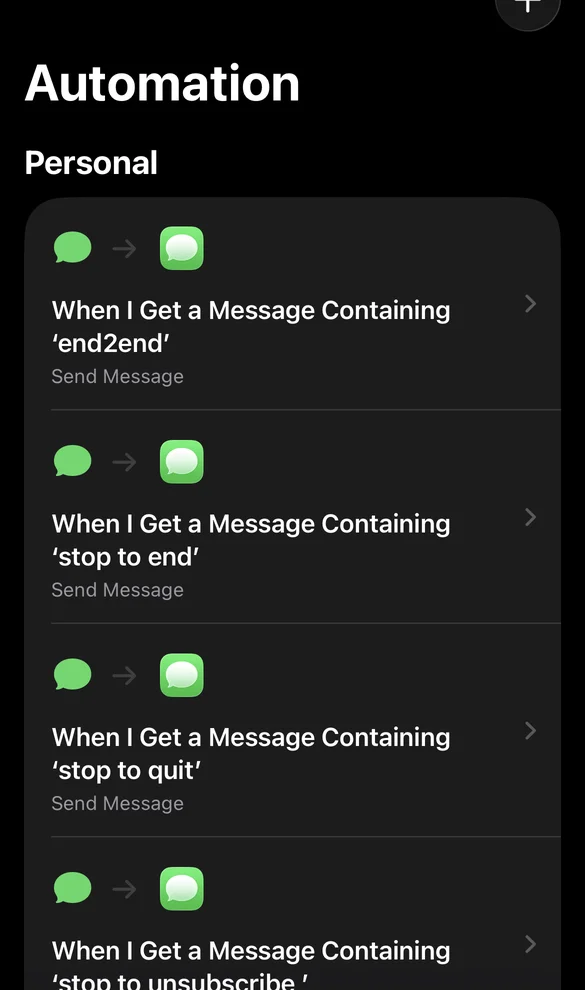
The easiest setup is to create one automation for each common unsubscribe phrase:
- When I get a message containing "stop to end" → send "STOP"
- When I get a message containing "stop to quit" → send "STOP"
- When I get a message containing "stop to unsubscribe" → send "STOP"
- When I get a message containing "end2end" → send "STOP"
- When I get a message containing "reply stop" → send "STOP"
No complicated contact guard. No big keyword list. No advanced shortcut logic. The automation simply looks for common unsubscribe language and replies with the standard opt-out message.
How to create it
- Open Shortcuts. If you do not have it, it is a free built-in app on every modern iPhone. Look for the purple icon with stylized shapes.
- Tap Automation, then +. The Automation tab is at the bottom center of the Shortcuts app.
- Choose Message. This sets the trigger to an incoming SMS or iMessage.
- Set the trigger to "When I get a message containing." Enter one unsubscribe phrase, such as "stop to end".
- Add action. Tap "Add Action" and choose "Send Message" from the messaging actions.
- Set the body to STOP. Type STOP as the message body.
- Set the recipient to the incoming message sender. You can choose the "Shortcut Input" variable which captures the sender of the triggering message.
- Choose "Run Immediately" if available. This lets the automation fire without asking for confirmation each time.
- Save it and repeat for each common phrase you want to cover.

Neutral phrases to start with
These phrases are common in campaign unsubscribe language and are not political:
- stop to end
- stop to quit
- stop to unsubscribe
- reply stop
- text stop
- end2end
- unsubscribe
- opt out
These alone will catch a large percentage of campaign texts from both sides of the aisle. If you want to be more thorough, you can also add political keywords.
Optional political keywords
Keep the list balanced and practical. The point is not to target one side; it is to catch unwanted campaign messages from any campaign, PAC, or mass-texting service.
This is the keyword list approach: instead of one automation per phrase, you build a shortcut that checks each incoming message against a keyword list. If there is a match, it sends STOP.
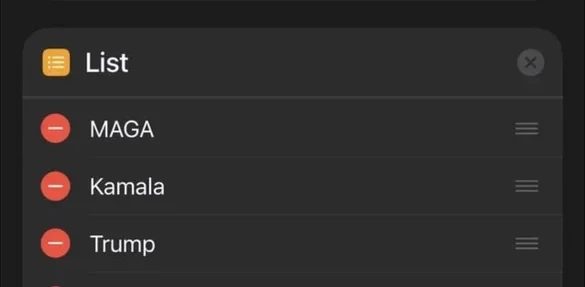
Republican-side examples: Trump, JD Vance, MAGA, GOP, Republicans, RNC, Conservative, Project 2025.
Democratic-side examples: Biden, Kamala, Tim Walz, Democrats, DNC, Liberal, Democracy, Progressive.
General campaign terms: Donate, Poll, Survey, Rally, Campaign, Election, Vote, Ballot, Fundraising, PAC.
The keyword list version is more powerful, but also slightly more complex to set up.
Advanced version
If you want more control, build a shortcut that receives each message as input, checks it against a list, and sends STOP when there is a match. You can also add a contact guard so it does nothing if the sender is already saved in contacts.
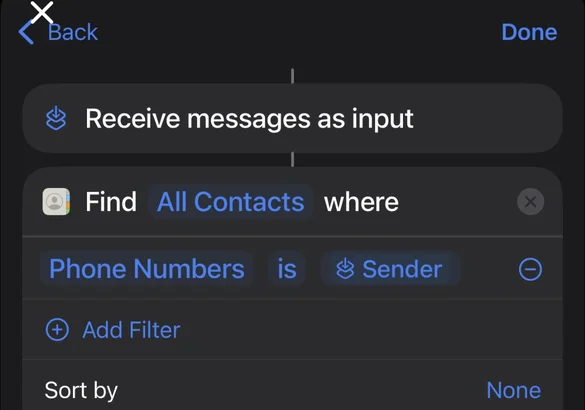
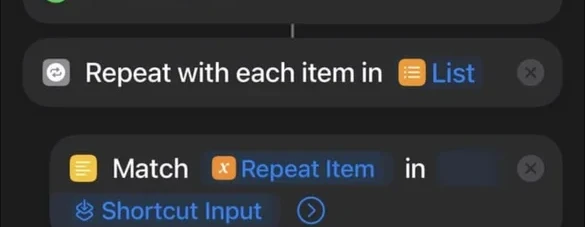
The full advanced flow works like this:
- Receive each message as input to the shortcut.
- Loop through a keyword list to check for campaign-related terms.
- Match the message content against the list.
- If there is a match, send "STOP" back to the sender.
- If there is no match, do nothing.
Testing note
Test carefully with a safe message from a trusted number. iOS automation behavior varies by version and some actions may require confirmation. Avoid aggressive auto-replies; the goal is simply to reply STOP when an unwanted mass text gives standard opt-out language.
If you find that certain automations are not firing, check that "Run Immediately" is enabled. Some versions of iOS may still show a notification that requires a tap — this is a system limitation, not a configuration issue.
Where this idea goes next
The same pattern — trigger, rule, action, response — is what we use to automate business workflows at Covered On. Incoming emails get routed to the right person. Form submissions trigger follow-ups. Inventory updates send notifications. The logic is simple; the time savings add up.
Key point
The pattern is the same whether you are replying STOP to a campaign text or sending a lead a welcome email: trigger, rule, action, response. Automation makes the repetition invisible.